Guide
Can you record lectures on Quizlet?
Yes. Quizlet added lecture recording in 2026. You can record in the Quizlet iOS and Android apps and on the desktop website, but not in a phone's browser. Your first recording is free and later ones need a paid plan. Quizlet turns each recording into a study guide and a linked flashcard set.
By the Record Lecture team · 12 November 2026 · 9 min read
Record Lecture publishes this guide and makes a lecture recorder of its own. Every Quizlet detail below comes from Quizlet's own pages, checked on 12 November 2026. Where two Quizlet pages disagree, we say so.
Where you can record a lecture on Quizlet
| Where | Record a lecture? |
|---|---|
| Quizlet app for iPhone and iPad | Yes |
| Quizlet app for Android | Yes |
| quizlet.com on a computer | Yes, from the Record lecture tab of Study Guides |
| quizlet.com in a phone browser | No |
| Upload a recording you already have | Yes, on the website: mp3, ogg, wav, m4a or aac, up to 5 hours and 500 MB |
One page is out of date. Quizlet's help article on audio still says recording works only in the iOS and Android apps and that the website takes uploads. Its feature page and the website itself say otherwise: signed in on a computer, the Study Guides screen has a Record lecture tab with a Start recording button.
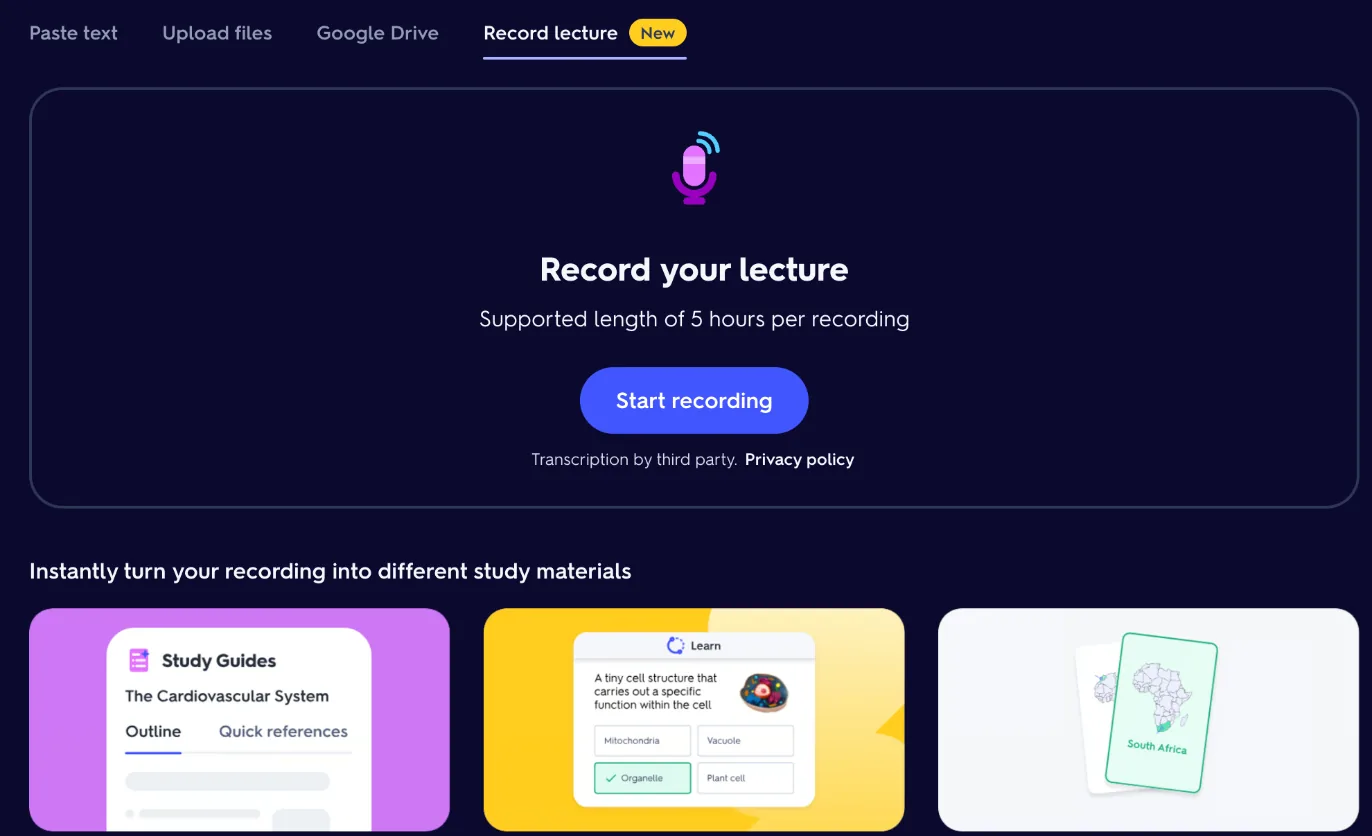
How to record a lecture on Quizlet
- Sign in to Quizlet on your computer, or open the Quizlet app on your phone.
- On the website, choose Record lecture at the top of the page. It opens the Study Guides screen on its Record lecture tab.
- Press Start recording when class begins, and stop when it ends. Recordings can run for up to 5 hours.
- Quizlet transcribes the recording and builds the study guide and flashcards. You can leave the page while it works.
- Set the study guide to private if your recording includes other people (see privacy below).
How to upload a recording you already have
If you recorded the lecture with your phone's voice recorder or another app, Quizlet's website can take the file instead. The steps from Quizlet's help center:
- Sign in, select Create, then Study Guide.
- Choose Select file and pick the recording. Quizlet accepts mp3, ogg, wav, m4a and aac files up to 5 hours long and 500 MB.
- Give it a title and a folder if you like.
- Select the language spoken in the recording. Quizlet uses it to process the audio, so a wrong choice gives you a study guide in the wrong language.
- Select Generate. You can leave the study guide page while Quizlet finishes it.
Record in Quizlet, or upload a recording?
Both end in the same study guide and flashcards. Which one to use depends on where you sit and what you carry:
| Record in Quizlet | Upload a file | |
|---|---|---|
| Best when | You have the Quizlet app, or your laptop open in class | You recorded with your phone's voice recorder or another app |
| Where | iOS app, Android app, quizlet.com on a computer | quizlet.com |
| Length | Up to 5 hours | Up to 5 hours and 500 MB, as mp3, ogg, wav, m4a or aac |
| Language | No language choice on the record screen we saw | You choose it before Generate; a wrong choice means uploading again |
| Placement | Wherever the device running Quizlet is | Any recorder you can put near the lecturer |
The upload route has one practical advantage: a phone left on the front desk usually hears the lecturer better than a laptop in row ten. Record on the phone, then upload the file from your computer after class.
What you get from a recording
A study guide (organized notes with key terms and examples) and a linked flashcard set that works with Learn and Quizlet's other study modes. Two details from Quizlet's help center are easy to miss:
- Study guide summaries from audio are available in English, French and German. Spanish lectures are not on that list.
- Practice Tests can't be generated from audio, according to the help center, even though the record screen advertises practice questions. Count on the study guide and flashcards.
When something goes wrong
The upload stopped halfway
If you leave before a recording finishes uploading, Quizlet keeps it as a draft on your device. Open Your library, then Study Guides, find it under In progress, open the options menu and choose Continue uploading.
The study guide is in the wrong language
This happens when the wrong audio language was selected before processing. Quizlet's fix is to start again: open the study guide, choose More options, then View original upload, download the audio, and upload it as a new study guide with the right language selected.
The recording is quiet or full of noise
No app can transcribe what its microphone did not hear clearly. Where you sit and how far you are from the lecturer matter more than which app you use; our guide to recording a lecture on a laptop covers the setup, with numbers from real recordings.
Want notes, a quiz and a tutor from your next lecture? Try Record Lecture free.
Start recordingBefore you press record on Quizlet
- Save the free recording for a real lecture. Only the first recording is free, so a quick test at home uses it up. Test your microphone with the phone's voice recorder instead.
- Use the right device. On a computer, use quizlet.com. On a phone, use the Quizlet app, because the phone browser cannot record.
- Plug in, and keep the device awake. A long recording on battery is the easiest way to lose the end of a class.
- Check the language. Summaries from audio come in English, French and German. A lecture in another language may not give you a useful study guide.
- Sit close to the lecturer. The transcript decides how good the study guide is, and distance is the biggest thing you control.
- Plan to make it private. Recordings start public, so change the setting as soon as the study guide is ready.
Is it free?
Your first recording is free. After that, recording is a paid feature, and here Quizlet's pages use different plan names. The help center says free and Quizlet Plus accounts can process a limited number of recordings, and the top plan gets unlimited recordings. The upgrade page we saw lists summarized audio recordings under Quizlet Premium and Family, not under Plus:
| Plan | Monthly | Yearly | Lists audio recordings |
|---|---|---|---|
| Quizlet Plus | $7.99 | $35.99 | No |
| Quizlet Premium | $13.99 | $62.99 | Yes |
| Quizlet Family (up to 5 accounts) | Not shown | $83.99 | Yes |
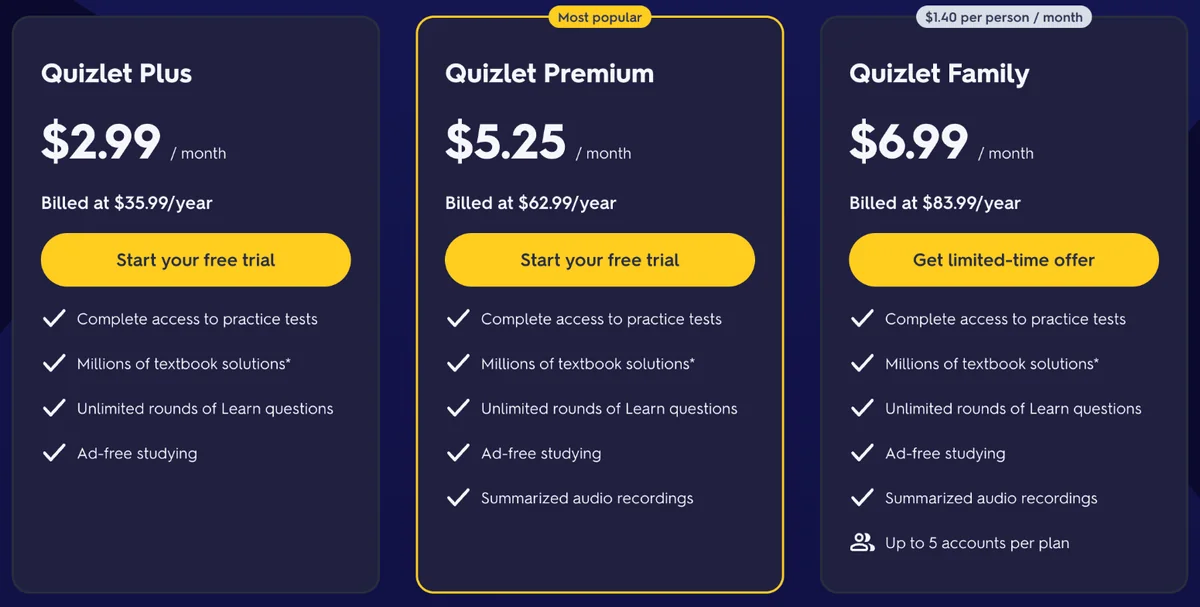
Prices from quizlet.com/upgrade on 12 November 2026, US prices, seen while signed in. Quizlet may show other prices in other countries or as offers. The annual plans include a 7-day free trial; the monthly plan does not.
Quizlet lecture recording limits at a glance
| Longest recording | 5 hours |
| Uploads | mp3, ogg, wav, m4a, aac; up to 5 hours and 500 MB |
| Where you can record | iOS app, Android app, quizlet.com on a computer |
| Where you cannot | A phone's web browser |
| Free | The first recording |
| Summary languages from audio | English, French, German |
| What you get | A study guide and a linked flashcard set; no Practice Test from audio |
| Default privacy | Public until you change it |
| Original audio | Kept; you can download it again from the study guide |
After the free recording
Once the free recording is used, you have three choices. You can pay for a plan that includes audio; on the upgrade page we saw, that was Premium or Family. You can stay on a lower plan, where the help center describes a limited number of recordings. Or you can use a different tool for lectures and keep Quizlet for flashcards. The help center's wording suggests uploads count toward the same limit, so recording elsewhere and uploading the file is unlikely to be a way around it.
Privacy: Quizlet recordings start public
Quizlet's FAQ says a recording is public by default. Once it has become a study guide, you can make it private from the More menu under Privacy settings. A lecture recording usually contains your lecturer's voice and often classmates' too, so it is worth doing every time. Quizlet also keeps your original audio: its help center tells you how to download it again from the study guide.
Quizlet and Coconote
In February 2026 Quizlet bought Coconote, an app that turns audio and video recordings into notes, quizzes and flashcards. Lecture recording inside Quizlet arrived later in the year, and the two now cover the same ground. If you already pay for Coconote, check what your plan includes before paying for Quizlet's audio feature as well.
Studying from a Quizlet study guide
The recording is the easy part. What you do in the next few days decides whether any of it sticks. A routine that works with what Quizlet gives you:
- Read the study guide the same day, while you still remember the lecture. Mark anything that looks wrong; Quizlet itself warns that AI-generated content may contain errors and asks you to review it.
- Fix the flashcards before you study them. A misheard term turns into a wrong card. Editing it once is quicker than learning it wrong.
- Study the flashcards a day or two later, in Learn or as cards, answering each one before you check.
- Go back to your slides for anything that was shown rather than said. Neither the study guide nor the flashcards can contain what never reached the microphone.
Who Quizlet's lecture recording suits
- Students who already live in Quizlet. The lecture becomes another flashcard set next to the ones you have, and you study it the same way.
- Long sessions. With a 5-hour limit, a full lab afternoon or a double lecture fits in one recording.
- Courses taught in English, French or German, the languages Quizlet lists for summaries from audio.
It suits you less if you want notes with tables and worked steps, want to ask follow-up questions about the lecture, study in Spanish, or want recordings private from the start.
Quizlet or Record Lecture?
Both turn a recorded lecture into study material. They are built for different habits.
| Quizlet | Record Lecture | |
|---|---|---|
| Record on a computer | Yes, website | Yes, website |
| Record in a phone browser | No (use the app) | Yes, with the screen on |
| Longest recording | 5 hours | 2 hours |
| Free | First recording | First lecture |
| What you get | Study guide and flashcards | Notes, a quiz and a tutor you can ask |
| Flashcards | Yes | No |
| Languages for summaries or notes | English, French, German | English, Spanish |
| Your recording | Public until you change it; original audio kept | Only you can see your lectures; audio deleted once notes are written |
Quizlet is the better choice when
- You already study with Quizlet flashcards and Learn, and want lectures in the same place.
- Your sessions run longer than two hours.
- Your lectures are in French or German.
Record Lecture fits better when
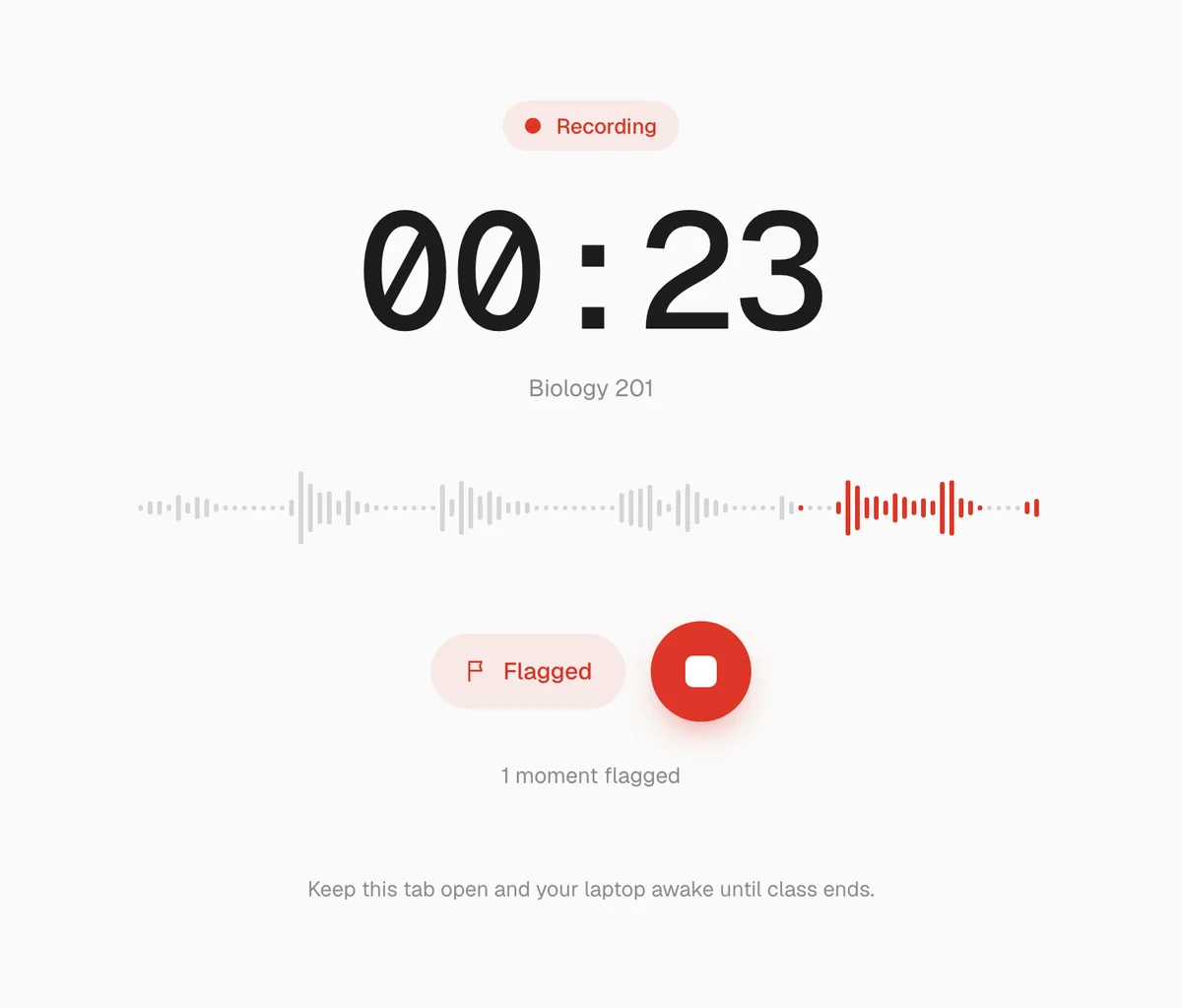
- You want notes that teach, with steps, tables and key terms, and a quiz built from the lecture.
- You want to mark the moments your lecturer says will be on the exam while you record.
- You want to ask questions and get answers taken only from that lecture.
- Your lectures are in Spanish, or you want to record from a phone browser without installing an app.
How we checked
On 12 November 2026 we read Quizlet's audio recording feature page and its frequently asked questions, the help center article on audio notes, and the upgrade page, signed in with a US account. We opened the Record lecture tab on quizlet.com on a computer to confirm it is there, and took the screenshots above. We did not make a recording, so this guide does not judge the quality of Quizlet's study guides. Where Quizlet's own pages disagree, we have said which one is out of date and why.
Questions
- Does Quizlet record lectures for free?
- Your first recording on Quizlet is free. After that, recording is a paid feature. On 12 November 2026 Quizlet's upgrade page listed summarized audio recordings under Quizlet Premium ($13.99 a month or $62.99 a year in the US).
- Can I record a lecture on Quizlet's website?
- Yes, on a computer. Signed in on quizlet.com, the Study Guides page has a Record lecture tab. Quizlet says recording is not supported in a phone's browser, so on a phone use the Quizlet app.
- How long can a Quizlet lecture recording be?
- Up to 5 hours per recording. Uploaded audio files can be up to 5 hours long and 500 MB, in mp3, ogg, wav, m4a or aac.
- Are Quizlet recordings private?
- Not at first. Quizlet's FAQ says a recording is public by default, and that once it has become a study guide you can make it private from the More menu under Privacy settings.
Notes, a quiz and a tutor when class ends. Your first lecture is free.