Guide
How to record a lecture on your laptop
Open a browser recorder, allow the microphone, and put your laptop as close to the lecturer as you can, lid open and charger in. Then leave the tab open until class ends. The microphone you already have is usually good enough; distance and a laptop that falls asleep are the two problems worth planning for.
By the Record Lecture team · 12 November 2026 · 9 min read
How long will you be recording?
Longer than most people plan for. We looked at the length of every audio recording students transcribed in Laxu AI, our study app, over one month. The median ran 39.5 minutes, a quarter ran past 53 minutes, and 41% ran 45 minutes or more. Only 2.3% went past two hours.
Two things follow. Your laptop has to stay awake for an hour or more, and a recorder with a two-hour limit, like Record Lecture, covers nearly every class. For a longer session, stop and start a new recording at the break.
Before class: a two-minute setup
- Plug in, or charge to full. Then check your power settings so the laptop never sleeps while charging. A sleeping laptop stops recording.
- Close anything else that uses the microphone, such as a video call app left open. Another app holding the microphone can leave your recording silent.
- Turn on Do Not Disturb. Notification sounds end up in the recording, right on top of what your lecturer is saying.
- Do a ten-second test. Open the recorder, allow the microphone, and watch the level bars while someone talks. If they barely move, move closer before class starts, not after.
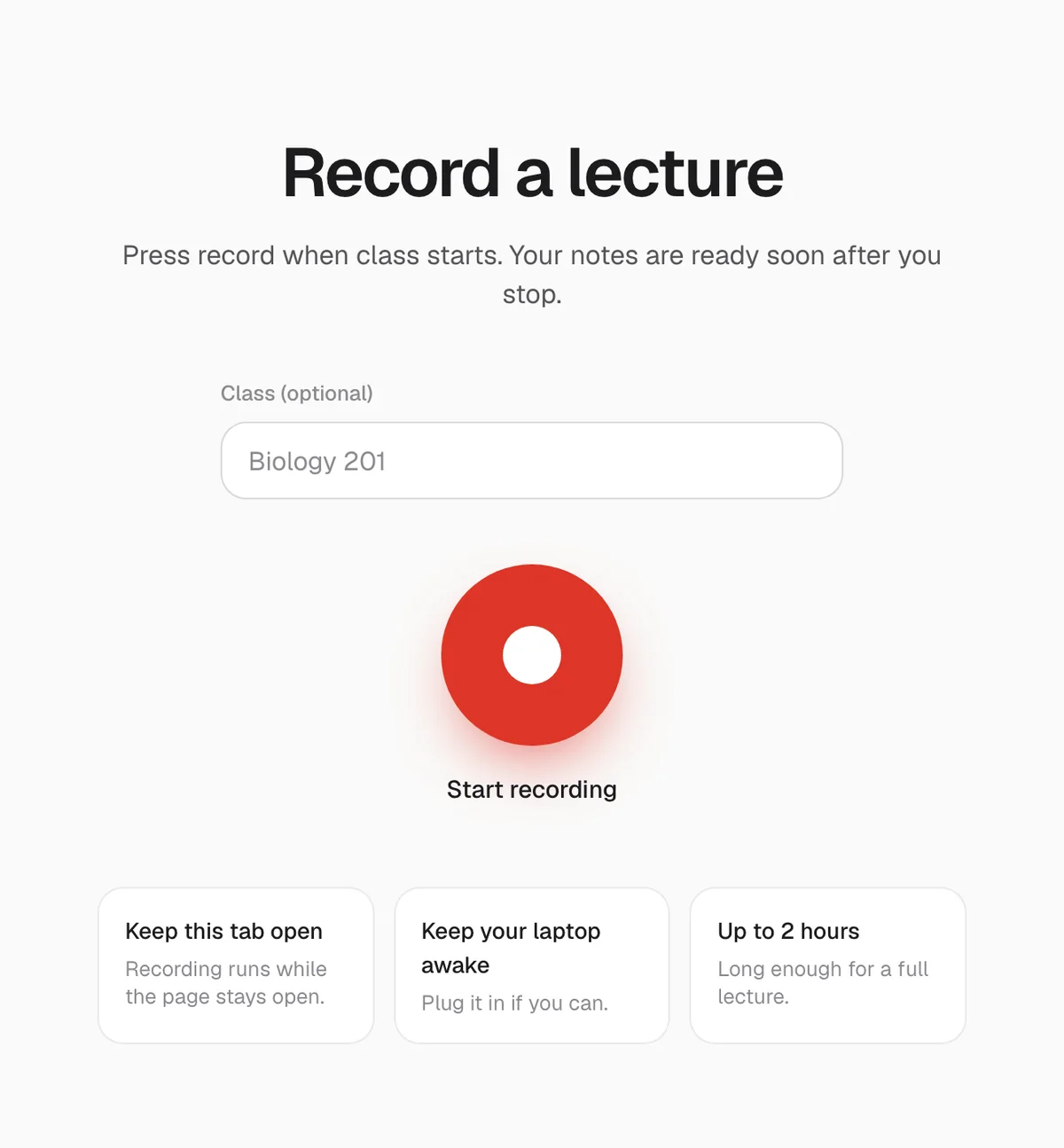
Allow the microphone on a Mac or Windows laptop
The first time you record, the browser asks for the microphone. Choose Allow. If you clicked Block by mistake, or nothing happens, there are three switches to check, in this order.
1. In the browser
In Chrome or Edge, click the icon at the left end of the address bar, open Site settings, and set Microphone to Allow; the same page lets you choose which microphone the site uses, which matters if you plug one in. In Safari, open the Safari menu and choose Settings for This Website.
2. On a Mac
Open System Settings, then Privacy & Security, then Microphone, and turn it on for your browser. macOS may ask you to quit and reopen the browser afterwards.
3. On Windows
Open Settings, then Privacy & security, then Microphone. Make sure microphone access is on, and that desktop apps are allowed to use it, since that is what your browser counts as.
Where to put the laptop
Closer is better, and it matters more than the microphone. Our web recorder in Laxu AI measures how much of each recording is heard clearly. Across 71 lectures recorded with it, the median recording was below that level 42% of the time. Pauses between sentences count as quiet, so a recording will never reach zero, but the rest is speech too faint to count. Sitting closer is the simplest way to lift more of the lecture above that line.
- Sit in the front third of the room, on the side where the lecturer usually stands.
- If the room has speakers, sitting near one helps: the lecturer's microphone does part of the work for you.
- Keep away from fans and vents. A projector fan or an air vent beside you adds steady noise under every word.
- Type lightly, or take notes on paper. A laptop's microphone sits a few centimetres from its keyboard, and every key press lands in the recording.
How we measured: 71 lectures recorded in Laxu AI's web recorder between 27 October and 12 November 2026. The recorder checks the sound level ten times a second and counts the time below a fixed “clearly heard” threshold. Lengths: 386 recordings transcribed by Laxu AI, 13 October to 12 November 2026. Counts only; no recording was opened.
Which microphone to use
- The laptop's built-in microphone is fine for most lectures if you sit close.
- Not Bluetooth earbuds. Their microphone points at you, not the lecturer, and many earbuds drop to a lower-quality call mode while the microphone is on.
- A small USB or clip-on microphone on the desk, facing the lecturer, helps in a big room. Choose it in the browser's microphone settings before you start.
During class
- Keep the recording tab open. You can use other tabs and apps while it records. Closing the tab, or the browser, ends the recording.
- Keep the lid open for the whole class, even if the battery is full.
- Flag what will be on the exam. When your lecturer says “this will come up”, press Flag for the exam in Record Lecture. The moment shows up in your notes under On the exam.
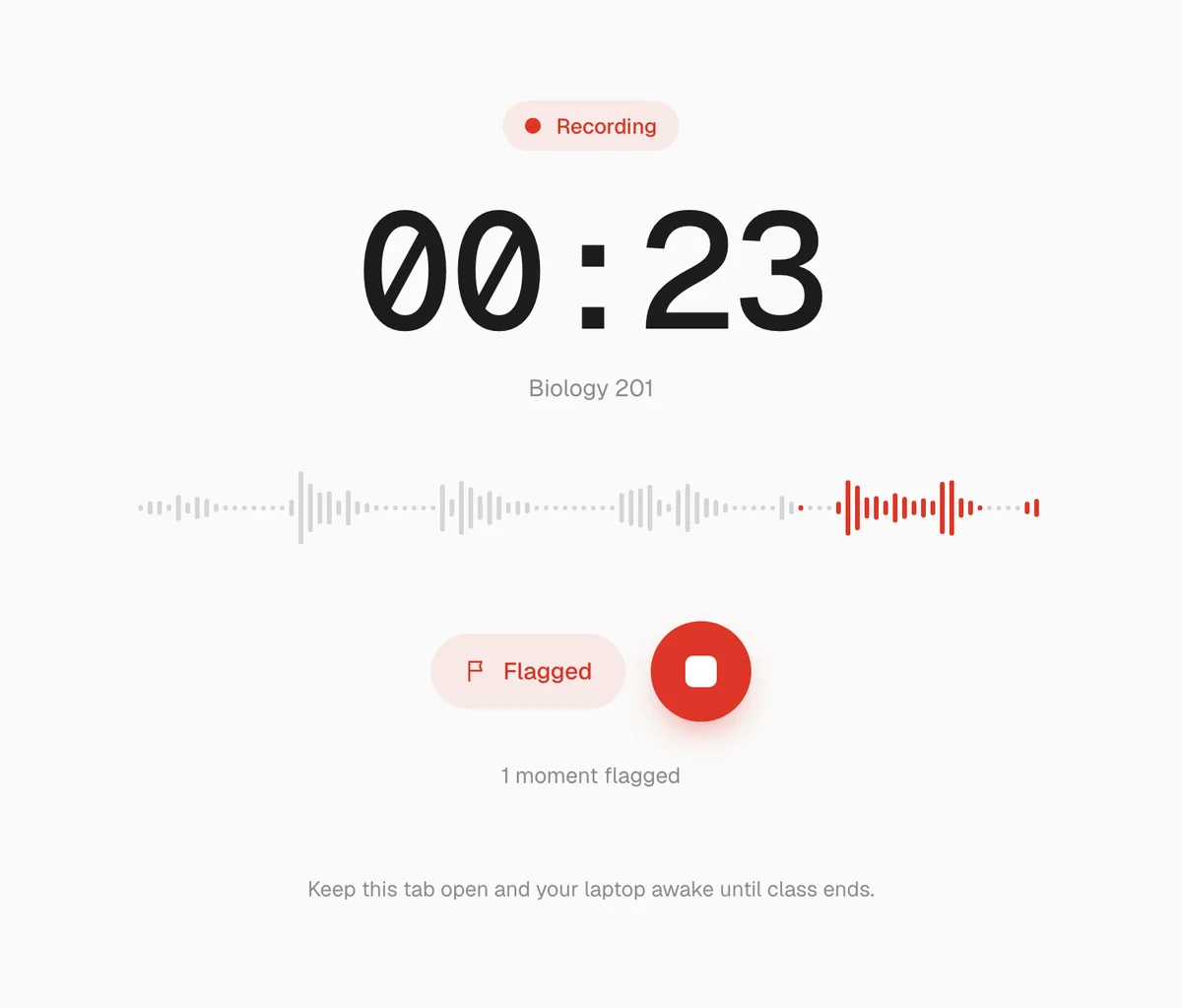
Ready for your next lecture? Your first recording is free.
Start recordingRecording an online or hybrid lecture
A browser recorder listens through your microphone. It does not capture the sound your laptop is playing. For a lecture on Zoom, Teams or a video page, that leaves three options, from best to worst:
- Use the official recording. Many courses post the recording or the captions afterwards. If they do, that is cleaner than anything you can capture yourself.
- Play it through the laptop speakers and record with the microphone. This works, because the microphone hears the speakers, but it also hears the room. Do it somewhere quiet, with the volume up and no headphones in.
- Headphones in, recorder on. This does not work: the microphone hears only you, and the recording comes back nearly silent.
In a hybrid room, where the lecturer speaks into a microphone for remote students, the room speakers usually carry the lecturer clearly. Sitting near one of them helps as much as sitting near the front.
Recording a seminar or a discussion class
Seminars are harder than lectures. Several people talk, some of them quietly, and often two at once. A laptop at one end of the table hears the people near it far better than the people at the other end.
- Put the laptop in the middle of the table, not in front of you, with nothing stacked around it.
- Ask the group, not just the tutor. A seminar recording captures everyone in the room.
- Expect notes on the ideas, not on who said them. The transcript does not label speakers, so the notes cover what was discussed rather than who argued which side. If that matters for your essay, write the names down yourself.
Laptop or phone?
A phone's microphone is often as good as a laptop's, and a phone is easier to place close to the lecturer. The trade-off is in how long it can keep going. Recording in a phone's browser needs the screen to stay on and the browser to stay open for the whole class, which drains the battery and is easy to interrupt with a notification you tap by mistake.
A laptop is simpler for long lectures: plug it in, open the tab, and leave it. If you cannot sit close, a phone recording from the front row can still beat a laptop recording from the back, so use whichever device can be nearer to the lecturer.
What makes a recording easy to transcribe
The notes are only as good as the transcript, and the transcript is only as good as the audio. A few things make the difference:
- One clear voice at a time. A lecturer speaking to the room transcribes far better than a discussion with people talking over each other.
- Speech louder than the room. Steady background noise, like a fan, lowers quality a little. Speech that is barely louder than the room is where words start to go missing.
- No music or video audio over the speech. When a clip plays in class, its soundtrack competes with the lecturer and the transcript of that stretch gets messy.
- Terms said out loud. A formula only shown on a slide never reaches the transcript. If a lecturer reads it out, it does.
What matters less than people expect: the brand of laptop. Today's speech-to-text copes with most accents when it can hear the words clearly. Distance and overlapping voices are what it cannot fix.
How much data and battery does it use?
Record Lecture sends audio at 48 kilobits a second, about 22 MB an hour, or 43 MB for a two-hour lecture. We checked it in Chrome: a 3.24-second test part came to 19,973 bytes, which is 49 kilobits a second. The audio goes up in parts of up to ten minutes while you record, so campus Wi-Fi only has to carry a few megabytes at a time. If the connection drops, finished parts wait on the page and are sent when it comes back.
We have not measured battery use, and it varies a lot between laptops. Plugging in removes the question.
When a recording goes wrong
| What you see | Likely cause | What to do |
|---|---|---|
| The level bars stay flat | Microphone blocked, or the wrong microphone chosen | Check the three permission switches above and the microphone picked in the browser's site settings |
| “We can't hear anything” while recording | About 25 seconds with no sound above the quiet level | Check the microphone is not muted or taken by another app, then move closer |
| A connection message | Campus Wi-Fi dropped | Keep recording. Finished parts wait on the page and are sent when you are back online |
| The recording stopped on its own | The laptop slept, or the tab or browser was closed | Start a new recording straight away; next time plug in and keep the lid open |
| The recording could not be saved | Signed out, or a lost connection that did not come back | Press Try again, or Download the recording so nothing is lost |
The last two rows are why the setup above matters: a recording that ends early is usually a laptop that went to sleep, not a broken app.
A checklist you can copy
Before class
- Laptop charged or plugged in, and set never to sleep while charging
- Video call apps closed
- Do Not Disturb on
- Seat in the front third of the room, away from fans and vents
- Ten-second test: the level bars move when someone talks
During class
- Lid open, recording tab left open
- Flag every “this will be on the exam”
- Type lightly, or take notes on paper
After class
- Stop the recording and wait for “Saving” to finish
- Read the overview and the flagged moments the same day
- Take the quiz before rereading
Ask before you record
Rules on recording lectures differ between countries and between universities. Some allow it for personal study, some need the lecturer's permission, and some do not allow it. Check your university's policy and ask your lecturer at the start of term, saying it is for your own revision.
After class
With Record Lecture, the notes and a quiz are ready a few minutes after you press Stop. Read the overview the same day, take the quiz before you look back at the notes, and ask the tutor about anything you got wrong. Then check names and formulas against your slides, because transcription can mishear them. More on what the notes contain is on our AI note taker page.
Questions
- Can I record a lecture on my laptop without installing an app?
- Yes. A browser recorder such as Record Lecture runs in Chrome, Edge, Safari or Firefox. Allow the microphone when the browser asks, press record, and keep the tab open until class ends.
- Will closing my laptop stop the recording?
- Usually, yes. Closing the lid puts most laptops to sleep, and a sleeping laptop stops recording. Keep the lid open, or plug it in and set it never to sleep while charging.
- Can I record a lecture with AirPods or other Bluetooth earbuds?
- It is a poor choice. Their microphone sits in your ear, pointed at you rather than the lecturer, and many Bluetooth earbuds switch to a lower-quality call mode while their microphone is in use. The laptop's own microphone is better.
- How much data does a recorded lecture use?
- With Record Lecture, about 22 MB an hour: the audio is sent at 48 kilobits a second. A two-hour lecture is about 43 MB, sent in parts of up to ten minutes while you record.
- How long can I record?
- Record Lecture records up to two hours at a time. That covers almost every lecture: of 386 student recordings we looked at, only 2.3% ran longer.
Notes, a quiz and a tutor when class ends. Your first lecture is free.